Playground
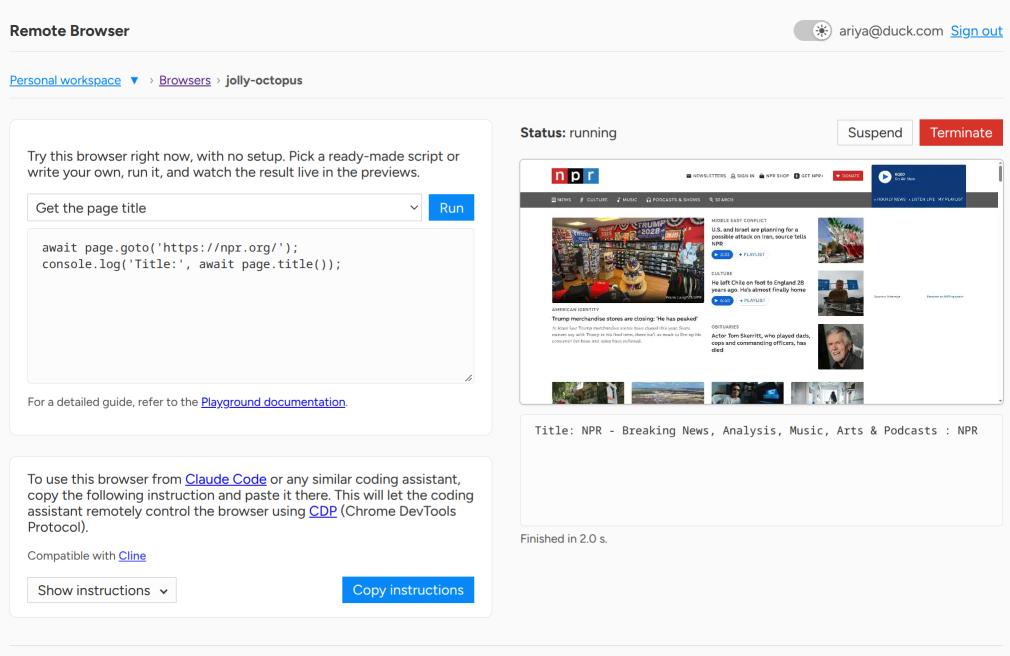
The playground lets you run a simple automation script in a running browser.
- Select a ready-made script from the list, or select Custom task and write your own script.
- Click Run, or press Ctrl+Enter (⌘+Enter on a Mac).
- Look at the previews to see what the browser does.
To stop the script, click Stop, which replaces Run while the script runs.
The script runs in a web worker in your browser tab. It connects to the browser with the same CDP URL that the coding assistant instructions use.
When the script ends, a box below the previews shows the result. The result contains
the console output, the return value, any errors, and the time the script took.
To open a page on its own, click its preview.
A script is the body of a JavaScript async function, so you can use await at the top level.
You can use these objects:
page: the first open tab in the browserconsole:log,info,warn, anderrorwrite to the output
The page object has these methods:
- Navigation:
page.goto,page.url,page.title,page.content - Actions:
page.click,page.fill,page.press - Reading:
page.evaluate,page.$eval,page.$$eval,page.textContent,page.innerText - Waiting:
page.waitForSelector,page.waitForTimeout - Raw commands:
page.cdp(method, params)sends a Chrome DevTools Protocol command to the tab
All selectors are CSS selectors.
The script runs in a web worker in your browser tab. It has the same full control of the browser as the CDP URL. Run only scripts that you trust.
If Remote Browser is configured to connect to an LLM, the harness lets the playground accept a task in natural language. In that case, the ready-made examples in the list switch to natural language as well.